It is possible to add and delete borders. You can alter the style and colors.
What is the purpose of format borders?
Improve the document’s readability and comprehension.
Highlighting important details
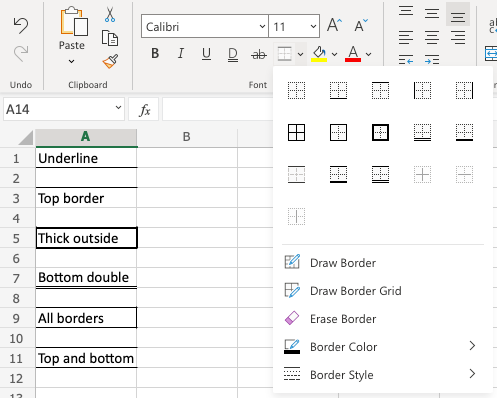
You can reach the Borders menu in the Font group of the Ribbon.
The button remembers the border you used last time.
Adding Borders
Clicking the Borders button adds a border.
By default, the boundary is underlined in black.
You have the option to alter the border’s design, color, or type.
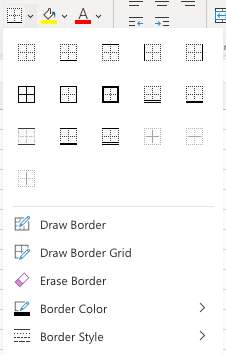
Additional border kinds can be selected using the option button located next to the Border command.
An overview of the many border possibilities can be shown by clicking the option button.
Example:
Border Colors
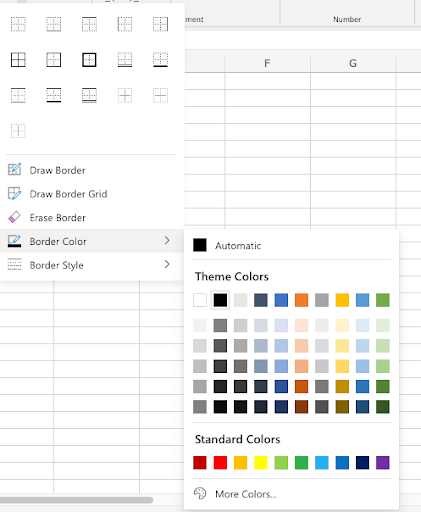
To add a colored border, first choose a color for the border.
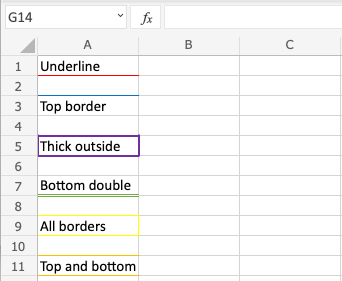
The Border Color menu allows you to modify the color:
Example:
Border Style
Styles for borders can be modified.
The Border Style menu is where you may access the menu.
Excel provides the following six border styles:
Solid line
Dashed line
Dotted line
Medium line
Thick line
Double line
Chapter Summary
Orders in various colors and styles can be added. The border button retains the last set of border parameters that were used. The border options button, which is located adjacent to the border button, provides access to the options.
The following chapter will cover the topic of number formats.