Installing different third-party libraries in the XCode project is possible with Cocoapods, which is a dependency manager for the swift and objective C projects. It is a very important skill that every iOS developer would have to improve on. This tutorial section will cover how to install different dependencies in the project using cocoapod and how to set it up in the system.
What is Cocoapods?
Installing dependencies for Swift and Objective-C projects in XCode is done via the dependency manager cocoapods. It is comparable to Java requirements that are installed using the griddle or maven. To ease the developers’ lives, a dependency manager is a tool that organizes the collection of frameworks.
Third-party libraries like Firebase, Alamofire, etc. are installed in iOS by Cocoapods. Nevertheless, installing a third-party library like Firebase manually is a laborious task that must be done if Cocoapods is not used. Here, we must install Firebase and all of its dependencies. We also need to redownload the SDK into our project in the event that Firebase makes modifications to it.
Our task gets much easier when we use Cocoapod as the dependency management; we now only need to maintain a file called Podfile, which automatically downloads all the libraries indicated in it.
Setting Cocoapods on the mac.
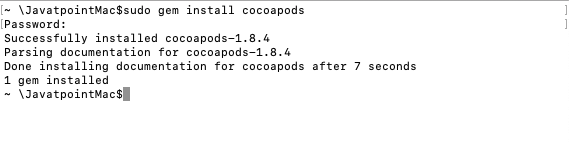
We must execute a short command in order to install cocoapods on the Mac. This is an extremely easy and clear process. Enter the following command in the terminal.
$ sudo gem install cocoapods
By doing this, the system’s cocoapods gem will be installed. Given that cocoapods are generated using Ruby, the system’s default Ruby installation is required.
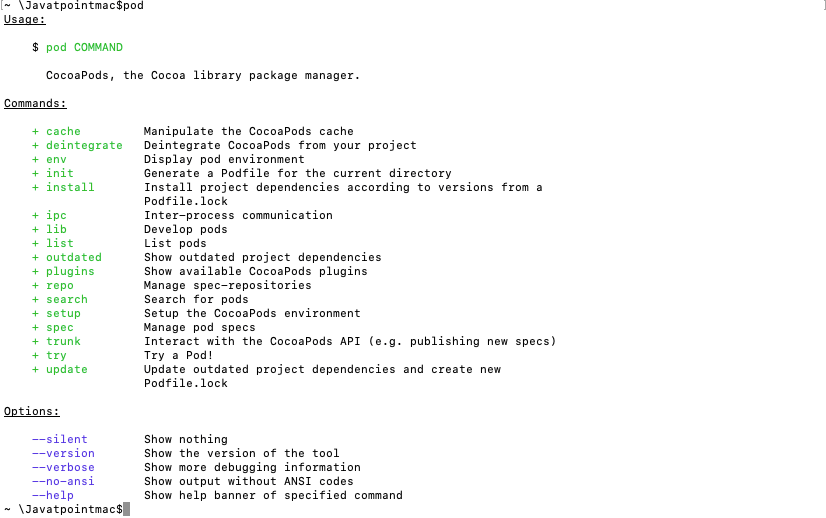
We have now successfully installed Cocoapods on our machine. To verify if the installation was successful or not, type the pod command in the terminal; the output that appears will be as follows.