
BS4 Typography
Bootstrap 4 Default Settings
Bootstrap 4 has a line height of 1.5 and a default font size of 16 pixels.
“Helvetica Neue”, Helvetica, Arial, sans-serif, is the default font family.
Furthermore, margin-bottom: 1rem (16px by default) and margin-top: 0 are applied to every <p> element.
-
HTML headings (<h1> to <h6>) styled using Bootstrap 4 With a larger font size and a bolder font weight:
Example
h1 Bootstrap heading (2.5rem = 40px)
h2 Bootstrap heading (2rem = 32px)
h3 Bootstrap heading (1.75rem = 28px)
h4 Bootstrap heading (1.5rem = 24px)
h5 Bootstrap heading (1.25rem = 20px)
h6 Bootstrap heading (1rem = 16px)
Display Headings
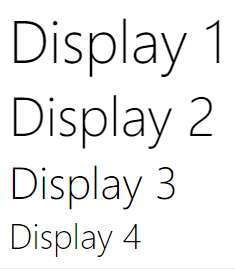
There are four classes of display headings, which are used to stand out more than regular headings (bigger font-size and lighter font-weight): .display-1, .display-2, .display-3, .display-4
Example
The HTML <small> element in Bootstrap 4 is used to add lighter secondary text to any heading:
Example
h1 heading secondary text
h2 heading secondary text
h3 heading secondary text
h4 heading secondary text
h5 heading secondary text
h6 heading secondary text
The HTML <mark> element will be styled by Bootstrap 4 with a yellow background and some padding:
Example
Use the mark element to highlight text.
The HTML <abbr> element will be styled with a dotted border bottom by Bootstrap 4:
Example
The WHO was founded in 1948.
If you want to quote content blocks from another source inside a <blockquote>, add the .blockquote class to it:
Example
For 50 years, WWF has been protecting the future of nature. The world’s leading conservation organization, WWF works in 100 countries and is supported by 1.2 million members in the United States and close to 5 million globally.
Using Bootstrap 4, the HTML <dl> element will be styled as follows:
Example
Coffee
– black hot drink
Milk
– white cold drink
The HTML <code> element will be styled as follows by Bootstrap 4:
Example
The following HTML elements: span, section, and div defines a section in a document.
The HTML <kbd> element will be styled as follows by Bootstrap 4:
Example
Use ctrl + p to open the Print dialog box.
The HTML <pre> element will be styled as follows by Bootstrap 4:
Example
Text in a pre element
is displayed in a fixed-width
font, and it preserves
both spaces and
line breaks.
More Typography Classes
You can add the following Bootstrap 4 classes to further style HTML elements:
| Class | Description | Example |
|---|---|---|
.font-weight-bold | Bold text | Try it |
.font-weight-bolder | Bolder text | Try it |
.font-italic | Italic text | Try it |
.font-weight-light | Light weight text | Try it |
.font-weight-lighter | Lighter weight text | Try it |
.font-weight-normal | Normal text | Try it |
.lead | Makes a paragraph stand out | Try it |
.small | Indicates smaller text (set to 80% of the size of the parent) | Try it |
.text-left | Indicates left-aligned text | Try it |
.text-*-left | Indicates left-aligned text on small, medium, large or xlarge screens | Try it |
.text-break | Prevents long text from breaking layout | Try it |
.text-center | Indicates center-aligned text | Try it |
.text-*-center | Indicates center-aligned text on small, medium, large or xlarge screens | Try it |
.text-decoration-none | Removes the underline from a link | Try it |
.text-right | Indicates right-aligned text | Try it |
.text-*-right | Indicates right-aligned text on small, medium, large or xlarge screens | Try it |
.text-justify | Indicates justified text | Try it |
.text-monospace | Monospaced text | Try it |
.text-nowrap | Indicates no wrap text | Try it |
.text-lowercase | Indicates lowercased text | Try it |
.text-reset | Resets the color of a text or a link (inherits the color from its parent) | Try it |
.text-uppercase | Indicates uppercased text | Try it |
.text-capitalize | Indicates capitalized text | Try it |
.initialism | Displays the text inside an <abbr> element in a slightly smaller font size | Try it |
.list-unstyled | Removes the default list-style and left margin on list items (works on both <ul> and <ol>). This class only applies to immediate children list items (to remove the default list-style from any nested lists, apply this class to any nested lists as well) | Try it |
.list-inline | Places all list items on a single line (used together with .list-inline-item on each <li> elements) | Try it |
.pre-scrollable | Makes a <pre> element scrollable | Try it |

