HCR – Between
Highlight Cell Rules - Between
With Excel’s preset conditional formatting tool, Highlight Cell Rules, you can alter a range of cells’ appearances according to your own criteria.
For the condition, one of the alternatives is between…
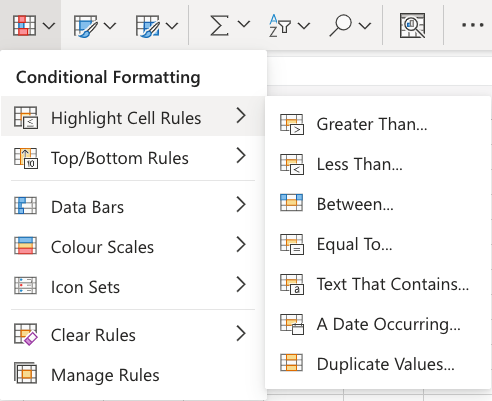
The Highlight Cell Rules section of the conditional formatting menu looks like this:
Highlight Cell Rule - Between Example
If the cell value falls between two given values, the “Between…” Highlight Cell Rule will highlight the cell with one of the appearance options.
The values that are supplied can be text values as well as numbers.
“79” and “100” are the designated values in this example.
Any range can be selected as the one to which the Highlight Cell Rule should be applied. It could consist of a few cells, one row, one column, or a mix of several rows, columns, and cells.
Now let’s apply the rule to each and every stat value.
“Between…” Highlight Cell Rule, step by step:
- Select the range C2:H8 for all of the stat values
2. Click on the Conditional Formatting iconĀ in the ribbon, from Home menu
3. Select Highlight Cell Rules from the drop-down menu
4. Select Between… from the menu
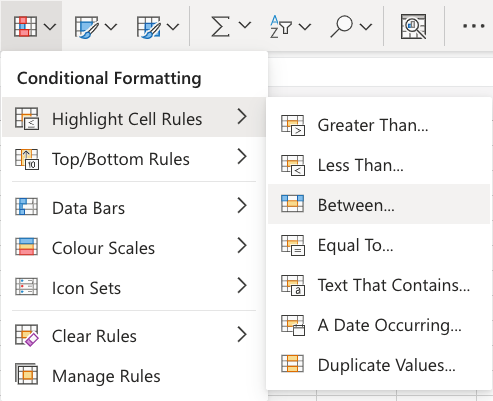
This will cause a dialog box to popup, allowing you to choose the appearance option and value.
5. Input fields: 79 and 100 should be filled in.
6. From the dropdown menu, choose “Yellow Fill with Dark Yellow Text” as the appearance choice.
Now, the cells with values between “79” and “100” will be highlighted in yellow:
You’ll see that the highlighted areas are Gyarados’ Special Defense (number 100) and Defense (number 79).
The given values are included in the Between… condition. Unlike the Greater Than… and Less Than… conditions, which do not contain the stated values, this one does.
Note: Manage Rules allows you to remove the Highlight Cell Rules.