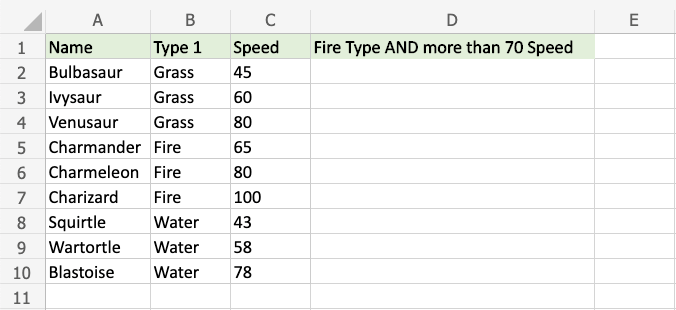
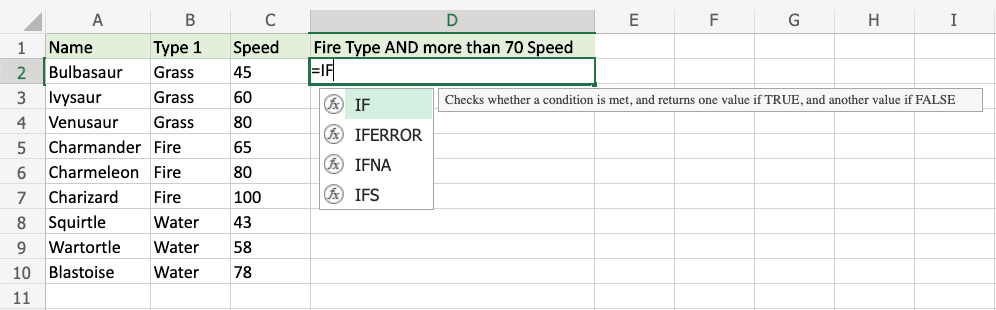
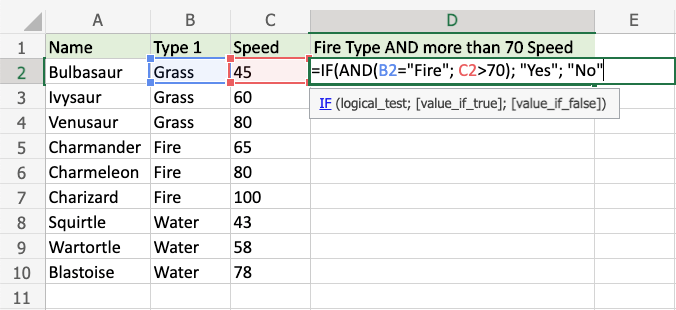
Excel Functions AND Excel AND Function Excel’s built-in AND function returns TRUE or FALSE depending on two or more conditions.It requires two or more conditions and is typed =AND.Note: The IF function and the AND function are frequently used in tandem. =AND([logical1], [logical2], ...) The conditions are referred to as [logical1], [logical2], and so on.The conditions can check things like:If a number is greater than another number >If a number is smaller than another number <If a number or text is equal to something =Note: A symbol, such as a comma or semicolon, is used to separate the various components of the function;The symbol is determined by your language preferences. Example AND Function Verify whether the Pokemon is fire-type and has a speed greater than 70:“True” or “False” is returned by the function. Example AND function, step by step:Select the cell D2Type =ANDDouble click the AND command 4. Specify the first condition B2=”Fire”5. Type ,6. Specify the second condition C2>707. Hit enterNote: Before pressing enter, repeat steps 5–6 to add more conditions. Since “Fire” is not the value in cell B2, the first condition is FALSE.The second condition is likewise FALSE since the value in cell C2 is less than 70.For the AND function to return TRUE, each and every condition must be TRUE.It is necessary to enclose text values in quotes: ” “To carry out the same check for every Pokemon, the function can be repeated using the filling function for every row: Now, each row has a check for Fire Type and Speed greater than 70: The code returns “TRUE” because only Charmeleon and Charizard have a Fire type and speed greater than 70. Example AND Function (with IF) You can verify several criteria for the IF function by combining the AND and IF functions:Note: You can define the return values using the IF function.Typed =IF, the IF function consists of three parts: =IF(logical_test, [value_if_true], [value_if_false]) The logical_test condition is replaced with the AND function.The IF function gives back “Yes” or “No” in this case.Step-by-step example of the AND function used as the IF function’s condition:Select cell C2Type =IFDouble click the IF command 4. Type AND5. Double click the AND command 7. Specify the first condition B2=”Fire”8. Type ,9. Specify the second condition C2>7010. Type ),11. Specify the value “Yes” for when both conditions are TRUE12. Type ,13. Specify the value “No” for when either, or both, conditions are FALSE14. Type ) and hit enter To carry out the same check for every Pokemon, the function can be repeated using the filling function for every row: Presently, every row has a check for both being of the Fire type and having a speed above 70: The code returns “Yes” in the case of Charmeleon and Charizard just because they have Fire type and speed greater than 70.