Text in a cell can be made lowercase by using the LOWER function.
while there is a lot of case inconsistency in the cell inputs or while getting your dataset ready for case-sensitive use, it can be beneficial to change the letter case of your cell values.
The typeface is =LOWER.
To apply the function to a single cell, type:
=LOWER(cell)
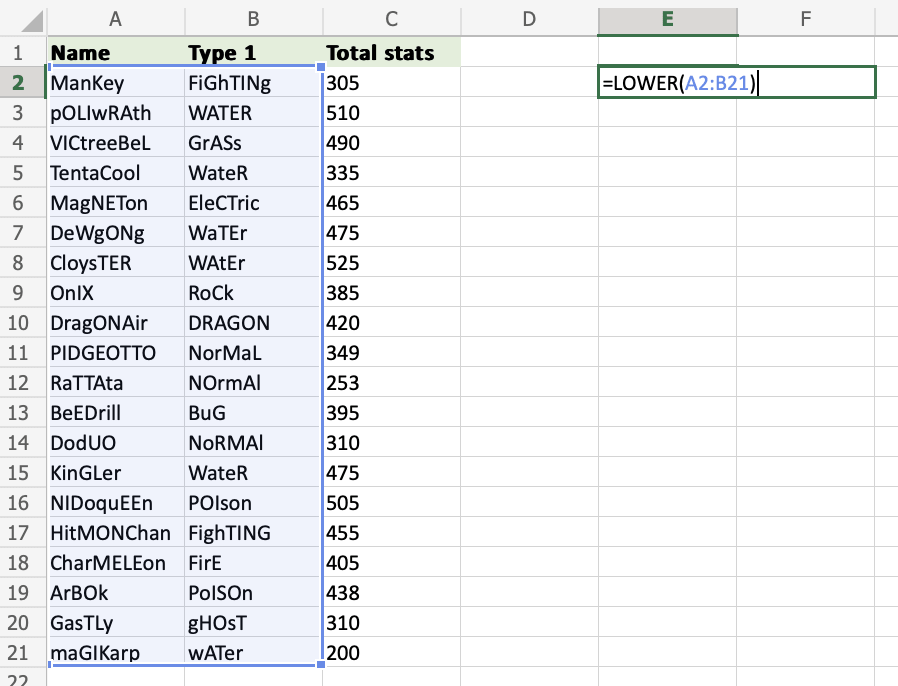
If you want to use the function on a range of cells, write:
=LOWER(start cell:end cell)
A is uppercase.
a is lowercase.
How to Use LOWER Function
To lower the text within an Excel cell, use LOWER.
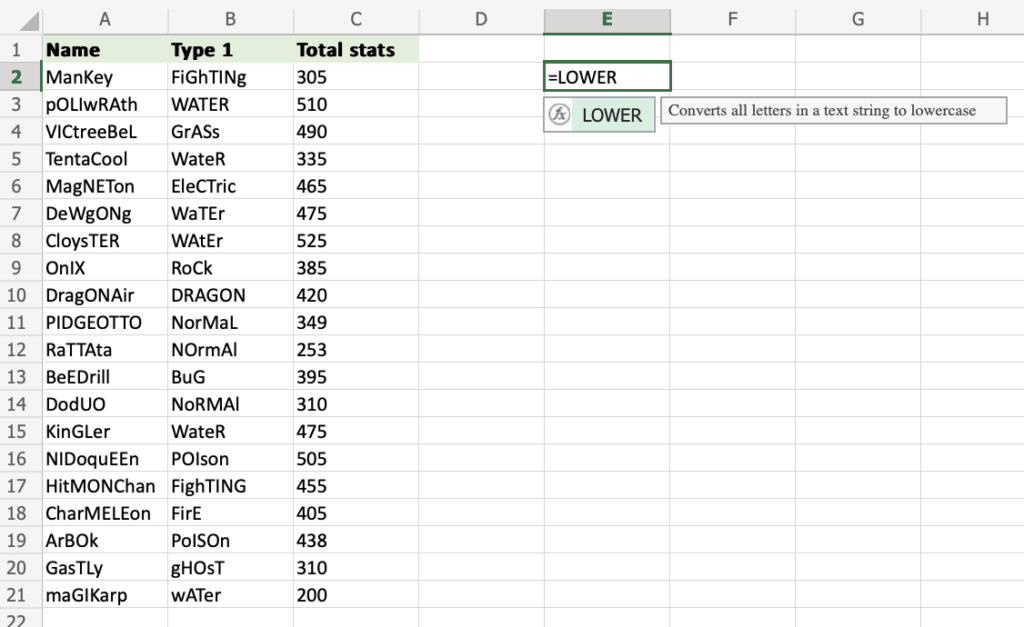
Step 1) Start the LOWER function
Select a cell E2
Type =LOWER
Double click the LOWER command
Try it yourself to follow the tutorial! Take a look at the values in the following example and give it a try!
Step 2) Define the cell
Select a cell (A2)
Hit enter
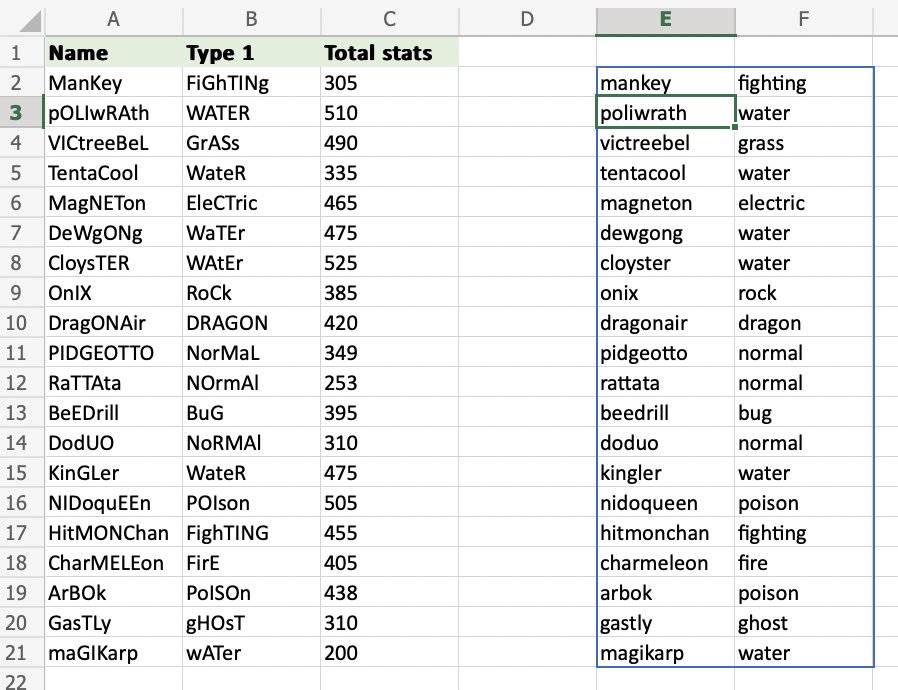
The letter case of cell A2has been changed!
Step 3) Define the range to use the LOWER function on multiple cells