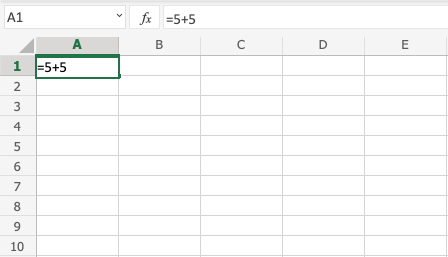
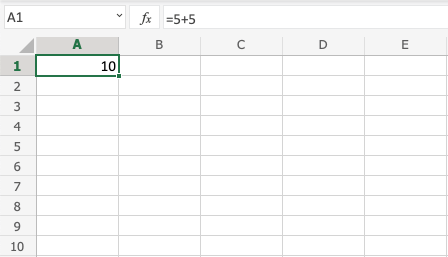
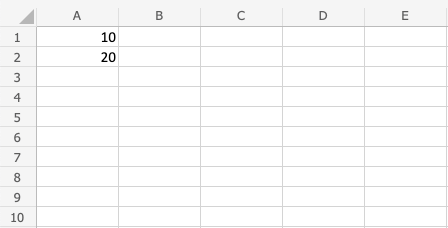
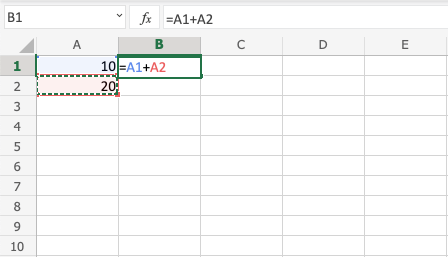
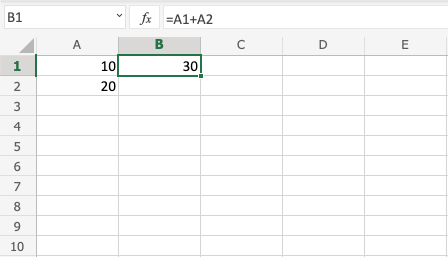
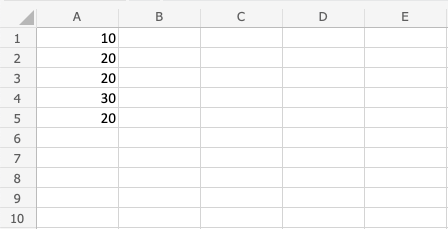
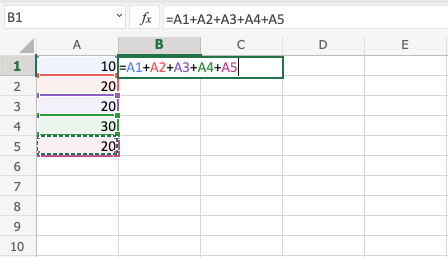
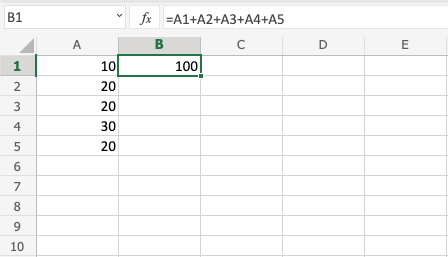
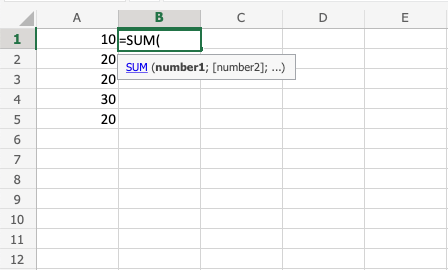
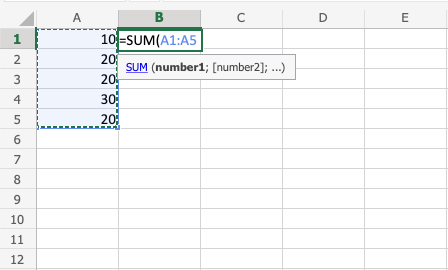
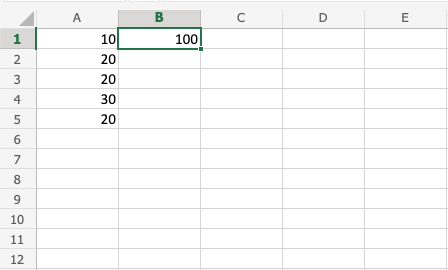
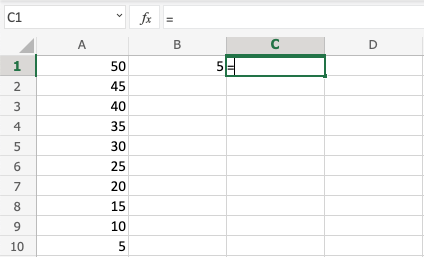
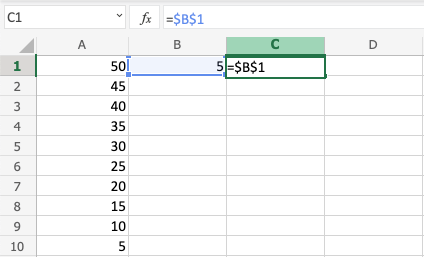
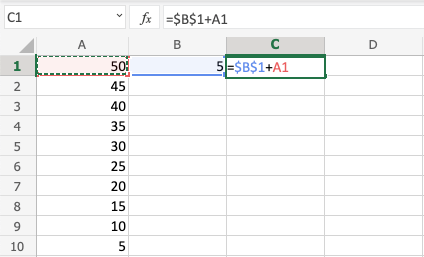
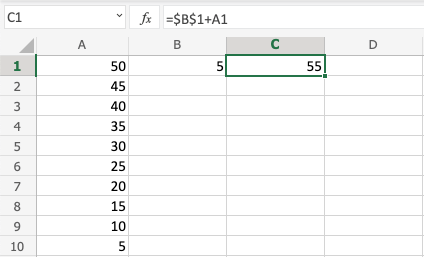
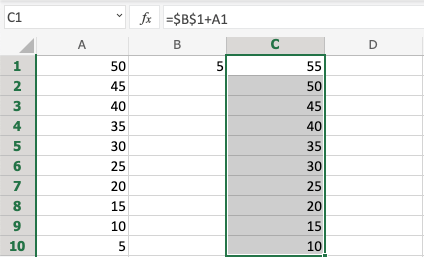
Excel Addition Operators Excel Addition Addition Operator In Excel, addition also referred to as plus is represented by the + sign.In Excel, there are two methods for adding. either by utilizing the SUM function or the + symbol in a calculation.How to incorporate cells:Select a cell and type (=)Select a cellType (+)Select another cellHit enterBy typing (+) in between the cells, you can add new cells to the formula.Let’s examine a few instances. Adding Two Manual Entries Type A1(=)Type 5+5Hit enter Congratulations! You have successfully added 5+5=10. Adding Two Cells Let’s start by adding some figures to work with. Enter the values listed below: How to do it, step by step:Type B1(=)Select A1Type (+)Select A2Hit enter Great! 30 is the result by adding A1 and A2. Adding Several Cells Let’s start by adding some figures to work with. Enter the values listed below: Step by step to add several cells:Type B1(=)Select A1Type (+)Select A2Type (+)Select A3Type (+)Select A4Type (+)Select A5Hit enter Well done! Five cells have been successfully added! Adding with SUM The numbers from the previous exercise should be kept. Eliminate the value in B1 if you completed the previous task. Step by step to add with SUM:Type B1(=SUM)Double click the SUM commandMark the range A1:A5Hit enter Note: SUM saves you time! Keep practicing this function. Adding Using Absolute Reference Additionally, a cell can be added to other cells and locked.How to proceed, in detail:Select a cell and type (=)Select the cell you want to lock, add two dollar signs ($) before the column and rowType (+)Fill a rangeLet’s see an example in which the fill function and absolute reference are used to add B(5) to the range A1:A10.Type the values: Step by step:Type C1(=)Select B1Type dollar sign before column and row $B$1Type (+)Select A1Hit enterFill the range C1:C10 Fantastic! You have added B1(5) using the range A1:A10 successfully using absolute reference.