Filling is a useful tool that helps you save time by automatically populating ranges with numbers, eliminating the need for manual entry.
Filling is useful for:
Copying
Sequences
Dates
Functions (*)
For now, do not think of functions. We will cover that in a later chapter.
How To Fill
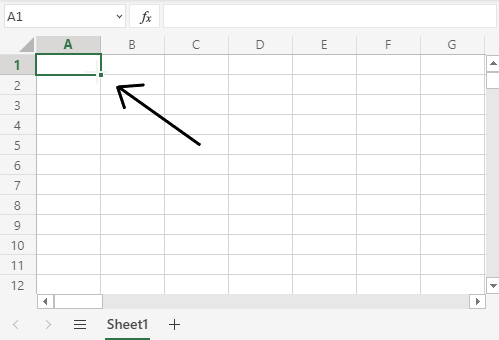
To fill a cell, first choose it, then click the fill symbol. Then, while holding down the left mouse button, drag and designate the range you want to fill.
The fill icon, which looks like a little square, is located in the cell’s lower right corner. Your mouse pointer will turn to a thin cross as soon as you hover over it.
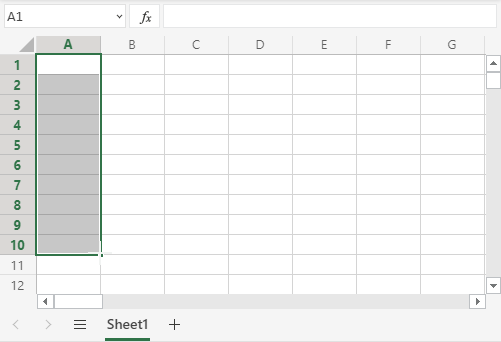
Holding down the left mouse button while clicking the fill symbol allows you to drag and mark the desired range of coverage.
In this instance, the range A1:A10 was noted, and cell A1 was chosen.
Having acquired the knowledge of filling. Let’s investigate the fill function’s copying capabilities.
Fill Copies
Copying can be done with filling. It works with both words and numbers.
First, let’s look at some numbers.
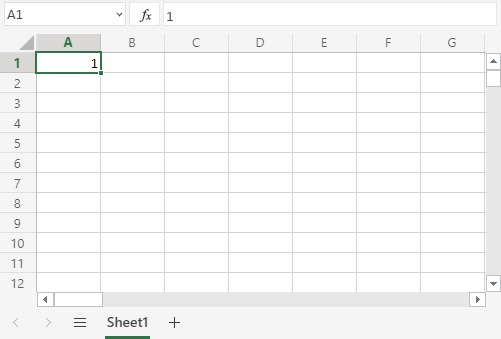
The value A1(1) has been inputted in this example:
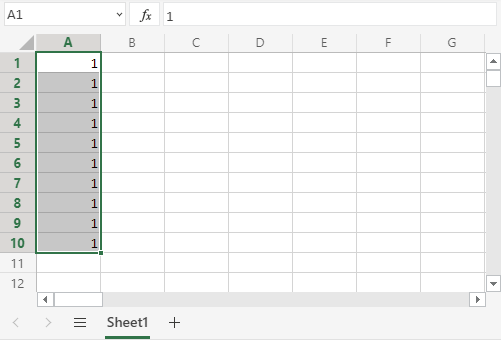
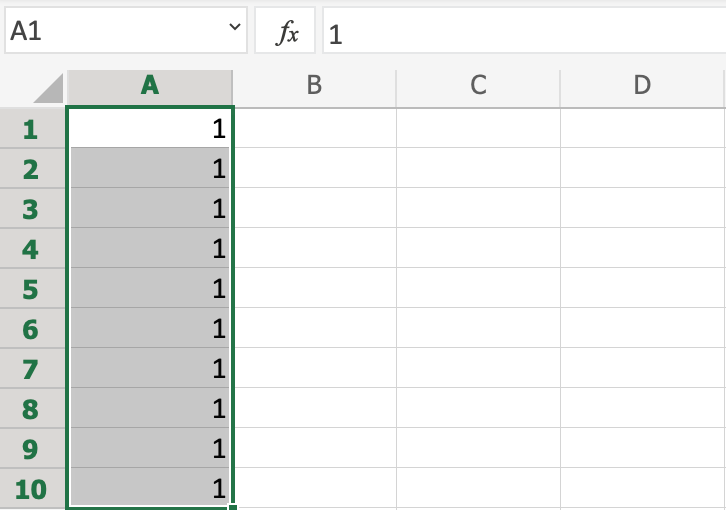
Filling the range A1:A10 creates ten copies of 1:
The same principle goes for text.
In this example we have typed A1(Hello World).
Filling the range A1:A10 creates ten copies of “Hello World”:
You now know how to fill it in and use it to copy words and numbers. Now let’s examine sequences.
Fill Sequences
Sequence creation is possible using filling. A sequence is a pattern or an arrangement. We can maintain the established order by using the filling function.
Sequences can be applied to dates and numbers, for instance.
First, let’s practice counting from 1 to 10.
This example differs from the last one in that we want to count from 1 to 10 instead of copying.
To begin, type A1(1):
We will demonstrate a non-functioning example first, followed by a working one. All set?
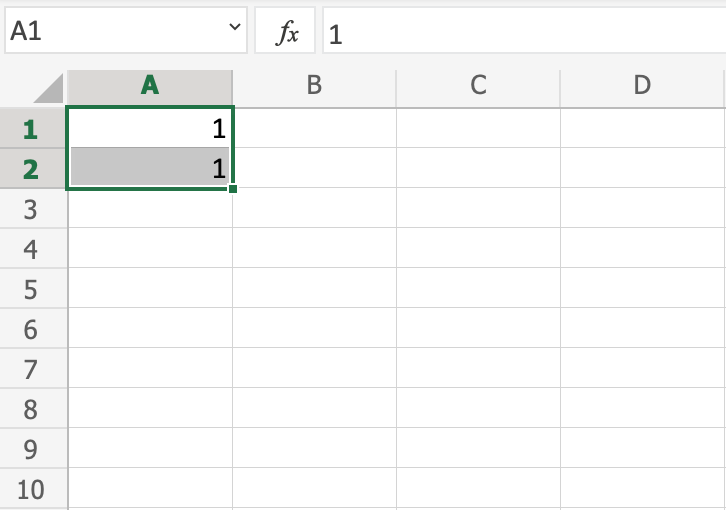
Assuming that the value (1) corresponds to what is in cell A1, let’s enter it there. At this point, the values in A1 and A2 are identical.
Let’s use the fill function from A1:A10 to see what happens. Remember to mark both values before you fill the range.
We obtained the identical values as we did when we copied. This is because, since we had two of the same values in cells A1(1) and A2(1), the fill function assumed that we wanted to make copies.
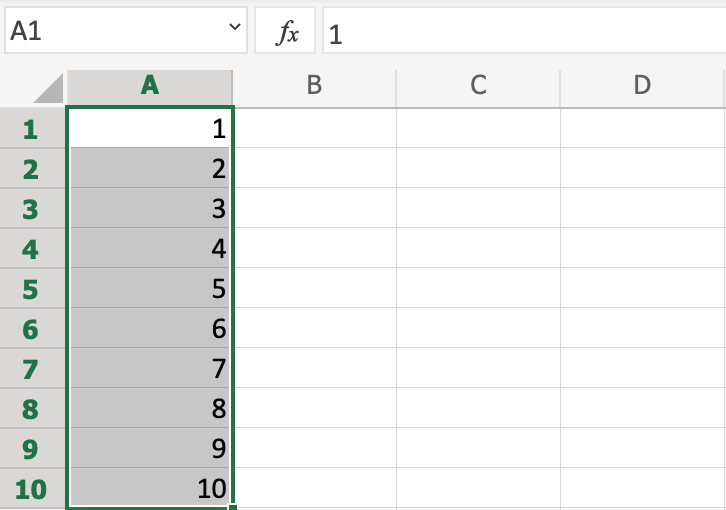
A2(1) should be changed to A2(2). The values in the cells A1(1)and A2(2) are now different. Fill in A1–A10 once more. It is important to note both values (with the shift held down) before filling the range:
Best wishes! This time, you have counted from 1 to 10.
The fill function carries on the pattern we typed in the cells by understanding it.
Because it did not recognize a pattern, it produced duplicates when we input the value (1) in both cells. It was able to recognize the pattern when we typed (1) and (2) into the cells, indicating that cell A3 should be (3) after that.
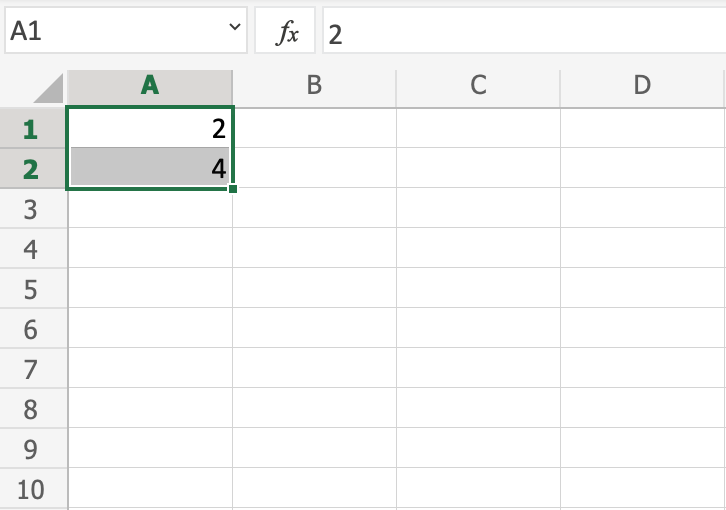
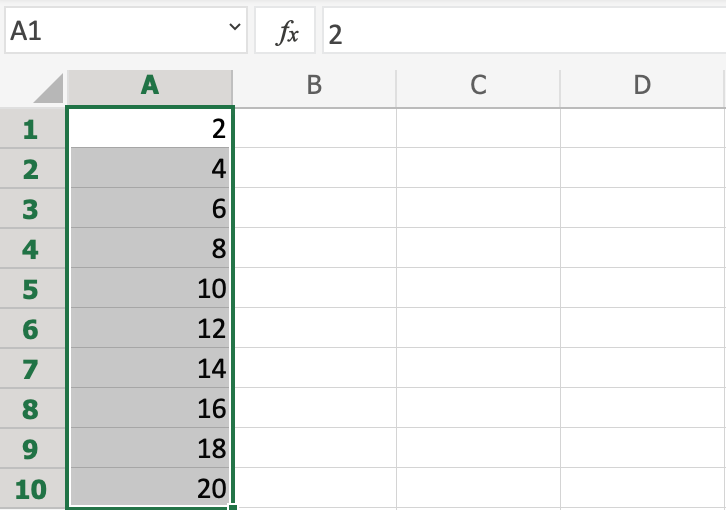
Let’s make an additional sequence. A1(2) and A2(4) types:
Now, fill A1:A10:
It is in the range A1:A10 and counts from 2 to 20.
This is as a result of the order we made using A1(2) and A2(4).
The following cells, A3(6), A4(8), A5(10), and so forth, are then filled. The fill function assists us in extending the pattern by comprehending it.
Sequence of Dates
The fill function can also be used to fill dates.
Note: The date format depends on you regional language settings.
For example 14.03.2023 vs. 3/14/2023.
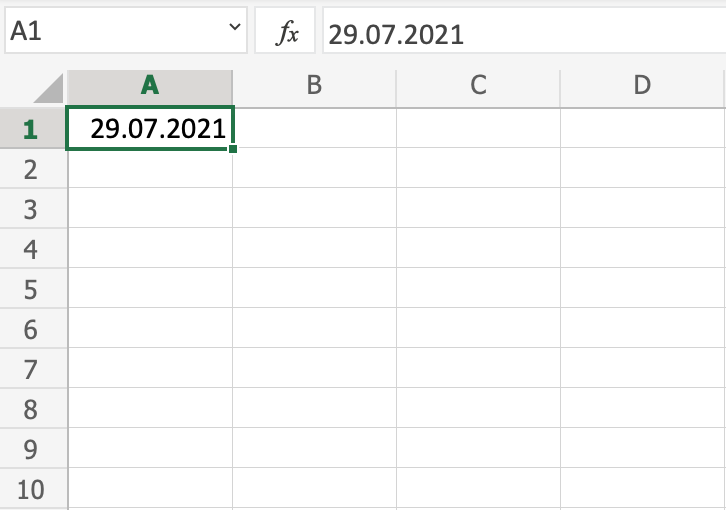
Test it by typing A1(29.07.2021):
And fill the range A1:A10:
The fill function from A1 (29.07.2021) to A10 (07.08.2021) has filled in 10 days.
Take note of the change in cell A4from July to August. It will count actual dates because it is aware of the calendar.
Combining Words and Letters
Words and letters can also be combined.
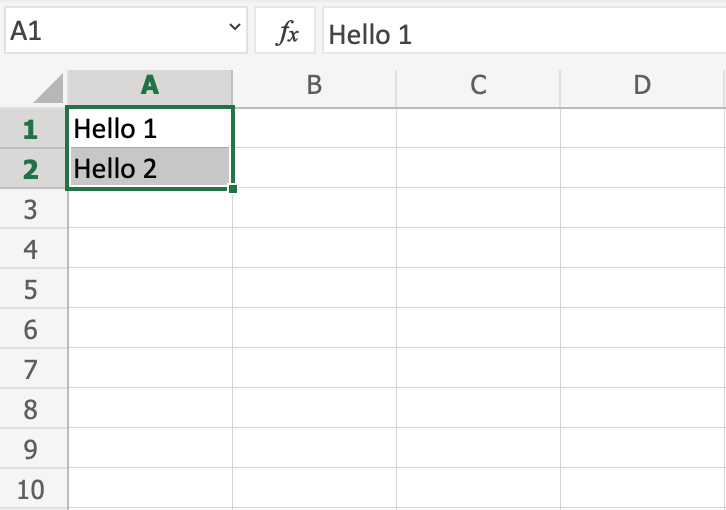
Type A1(Hello 1)and A2(Hello 2):
Next, fill A1:A10 to see what happens:
It counts from A1 (Hello 1) to A10 (Hello 10), as a result. All that has changed are the numbers.
It repeated the pattern for us after recognizing the numbers. You can blend words and numbers as long as the numbers follow a recognizable pattern.