
CoreData
CoreData
Apple offers a framework called CoreData that allows iOS applications to store, track, filter, and alter data. Although it uses SQLite as its persistent store, it is not the database. In our application, it is utilized to handle the model layer object. It maintains the object graphs, monitors data changes, and updates the user interaction data.
We have shown in the previous section of the lesson that we can store the brief bits of data using user defaults. But, we will cover how to store, edit, and filter user data in the application’s database using the real database framework, such as CoreData, in this section of the course.
How to use CoreData in iOS application
Here, we’ll build an iOS application using the CoreData framework, which allows us to save and store the data objects.
Let’s build an iOS single view application to show you the fundamentals of CoreData. We need to tick the Use CoreData option at the bottom of the screen in order to allow the app to use CoreData.
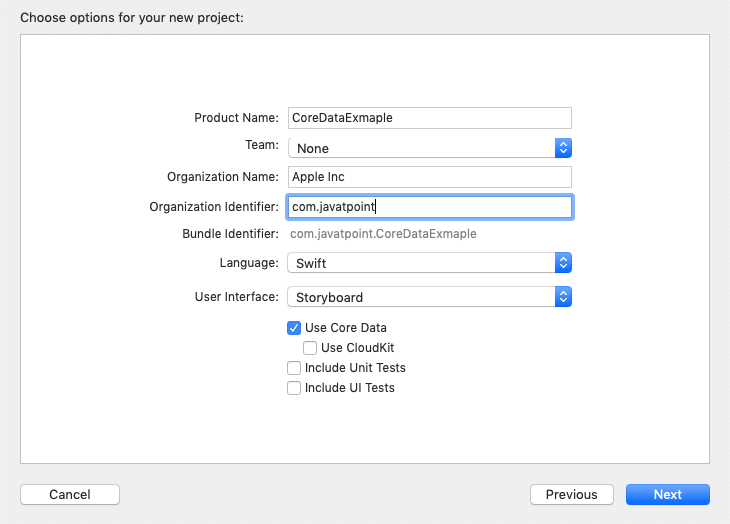
With CoreData support, we have now successfully developed the CoreDataExample project. If we look closely, the XCode project has seen two significant changes. First, the AppDelegate file now contains the Core Data stack code. Brief comments provide concise documentation for the CoreData stack code. If there are any modifications, it stores the data and configures the persistentContainer. The following graphic displays the CoreData Stack Code.

Secondly, the Application’s package now includes the new file CoreDataExample.xcdatamodeld. It serves as the data’s model layer. The entity, properties, and relations can all be added to the model layer.

Adding the Entity to CoreData Model
By choosing the Add Entity option located at the bottom of the file, we may add an entity to the xcdatamodeld file. We can add relationships, fetched properties, and attributes to the entity in the file’s right pane.
As seen in the figure below, we have built a Student entity and added the three characteristics of ID, age, and name to the model.

- Instantiate the persistentContainer.
- Create the context object.
- Create an entity object.
- Create a new record object.
- Set values for the records for each key.
let delegate = UIApplication.shared.delegate as! AppDelegate
Using the code below, we can use the persistentContainer reference to generate the context.
let context = delegate.persistentContainer.viewContenxt
We must now create the entity using the newly formed context reference.
let entity = NSEntityDescription.entity(forEntityName: "Student", in: context)
As the entity object, we must now construct a new Student record.
let newStudent = NSManagedObject(entity: entity!, insertInto: context)
Let’s now add a few records to the just formed entity object.
					newStudent.setValue("John", forKey: "name")
newStudent.setValue(23, forKey: "age")
newStudent.setValue(1, forKey: "id")
The context, entity, and entity object have all been constructed, along with an AppDelegate object. Additionally, we have set the values for the just formed entity object.
The data must now be saved into CoreData. We utilize the context object to store the context in order to save the data. The try-catch block has to be used to enclose this code.
Now, our data will be saved inside the CoreData if we execute our program.
The following code is contained in the AppDelegate.swift and ViewController.swift files.
AppDelegate.swift
					import UIKit
import CoreData

@UIApplicationMain
class AppDelegate: UIResponder, UIApplicationDelegate {

    func application(_ application: UIApplication, didFinishLaunchingWithOptions launchOptions: [UIApplication.LaunchOptionsKey: Any]?) -> Bool {
        // Override point for customization after application launch.
        return true
    }


    // MARK: UISceneSession Lifecycle


    func application(_ application: UIApplication, configurationForConnecting connectingSceneSession: UISceneSession, options: UIScene.ConnectionOptions) -> UISceneConfiguration {
        // Called when a new scene session is being created.
        // Use this method to select a configuration to create the new scene with.
        return UISceneConfiguration(name: "Default Configuration", sessionRole: connectingSceneSession.role)
    }


    func application(_ application: UIApplication, didDiscardSceneSessions sceneSessions: Set<UISceneSession>) {
        // Called when the user discards a scene session.
        // If any sessions were discarded while the application was not running, this will be called shortly after application:didFinishLaunchingWithOptions.
        // Use this method to release any resources that were specific to the discarded scenes, as they will not return.
    }


    // MARK: - Core Data stack


    lazy var persistentContainer: NSPersistentContainer = {
        /*
         The persistent container for the application. This implementation
         creates and returns a container, having loaded the store for the
         application to it. This property is optional since there are legitimate
         error conditions that could cause the creation of the store to fail.
        */
        let container = NSPersistentContainer(name: "CoreDataExmaple")
        container.loadPersistentStores(completionHandler: { (storeDescription, error) in
            if let error = error as NSError? {
                // Replace this implementation with code to handle the error appropriately.
                // fatalError() causes the application to generate a crash log and terminate. You should not use this function in a shipping application, although it may be useful during development.

                /*
                 Typical reasons for an error here include:
                 * The parent directory does not exist, cannot be created, or disallows writing.
                 * The persistent store is not accessible, due to permissions or data protection when the device is locked.
                 * The device is out of space.
                 * The store could not be migrated to the current model version.
                 Check the error message to determine what the actual problem was.
                 */
                fatalError("Unresolved error \(error), \(error.userInfo)")
            }
        })
        return container
    }()


    // MARK: - Core Data Saving support


    func saveContext () {
        let context = persistentContainer.viewContext
        if context.hasChanges {
            do {
                try context.save()
            } catch {
                // Replace this implementation with code to handle the error appropriately.
                // fatalError() causes the application to generate a crash log and terminate. You should not use this function in a shipping application, although it may be useful during development.
                let nserror = error as NSError
                fatalError("Unresolved error \(nserror), \(nserror.userInfo)")
            }
        }
    }
}
ViewController.swift
					import UIKit
import CoreData


class ViewController: UIViewController {


    override func viewDidLoad() {
        super.viewDidLoad()
        // Do any additional setup after loading the view.

        let appDelegate = UIApplication.shared.delegate as! AppDelegate
        let context = appDelegate.persistentContainer.viewContext
        let entity = NSEntityDescription.entity(forEntityName: "Student", in: context)
        let newStudent = NSManagedObject(entity: entity!, insertInto: context)
        newStudent.setValue("John", forKey: "name")
        newStudent.setValue(23, forKey: "age")
        newStudent.setValue(1, forKey: "id")

        do{
            try context.save()
        }catch{
            debugPrint("Can't save")
        }

    }
}
Fetching the records
It is quite easy to fetch the records from the CoreData. The NSFetchRequest class must be instantiated, and a request object must be made. This request object can be supplied to the retrieve() method in order to obtain the NSManagedContext reference.
let result = try context.fetch(request)
To retrieve the data from the CoreData, use the code that follows.
					let request = NSFetchRequest<NSFetchRequestResult>(entityName: "Student")
        request.returnsObjectsAsFaults = false
        do{
            let result = try context.fetch(request)
            for data in result{
                debugPrint((data as AnyObject).value(forKey: "name") as! String)
                debugPrint((data as AnyObject).value(forKey: "id") as! Int16)
                debugPrint((data as AnyObject).value(forKey: "age") as! Int32)
            }
        }catch{

        }
The following code is now present in the ViewController.swift file.
					import UIKit
import CoreData

class ViewController: UIViewController {

    let appDelegate = UIApplication.shared.delegate as! AppDelegate
    var context = NSManagedObjectContext()
    override func viewDidLoad() {
        super.viewDidLoad()
        // Do any additional setup after loading the view.

        context = appDelegate.persistentContainer.viewContext

        let entity = NSEntityDescription.entity(forEntityName: "Student", in: context)
        let newStudent = NSManagedObject(entity: entity!, insertInto: context)
        newStudent.setValue("John", forKey: "name")
        newStudent.setValue(23, forKey: "age")
        newStudent.setValue(1, forKey: "id")

        do{
            try context.save()
     fetchData()
        }catch{
            debugPrint("Can't save")
        }
    }
    func fetchData(){
        let request = NSFetchRequest<NSFetchRequestResult>(entityName: "Student")
        request.returnsObjectsAsFaults = false
        do{
            let result = try context.fetch(request)
            for data in result{
                debugPrint((data as AnyObject).value(forKey: "name") as! String)
                debugPrint((data as AnyObject).value(forKey: "id") as! Int16)
                debugPrint((data as AnyObject).value(forKey: "age") as! Int32)
            }
        }catch{
        }
    }
}

