
Creating first iOS application
Thus far, we have examined the fundamentals of developing an iOS application on macOS using XCode. We have also talked about the necessity of view controllers, storyboards, and interface builders. We will develop our first iOS application and go over some of the fundamental components of an iOS application in this section of the lesson.
Double-clicking the XCode icon in the apps will launch a new project in XCode, where we can then construct the first iOS application. This will launch XCode, and from the menu on the left pane of the window, select Create a new project. It will open the window that follows. We can select from a variety of project types that XCode offers. We must choose the Single View App in this case. Later in this tutorial, we will also talk about different kinds of projects.
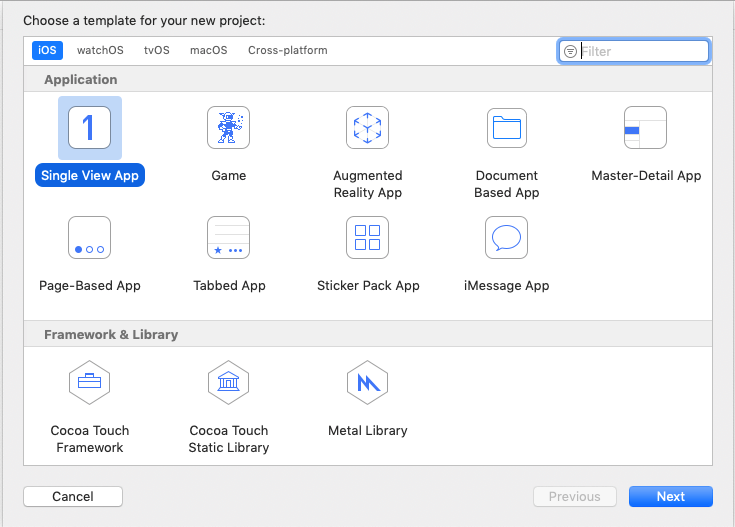
Click Next now. We will be prompted to fill out the project-related information window that pops up. Complete every field pertaining to the product, such as the name, team, organization name, etc. It is important to note that the team’s default selection in this case is None. In order to choose the developer name, we must sign in using our Apple ID. I have left it at None, though.
We can provide the name for which we are creating the application in the Organization name field. I’ve applied for this project at Apple Inc.
The reverse of the organization’s domain name must be entered in the organization identifier. For instance, we shall put com.javatpoint for the organization Javatpoint.
The product name and organization identification will be concatenated to generate the bundle identifier. The distinct identifier that will be used to represent the application on a particular platform, such as Firebase, is called the bundle identifier. On an iPhone, we are unable to install two iOS apps with the same bundle identity.
Choose the language that we are aiming to develop with in the language. We’ll be using Swift as our programming language in this lesson.
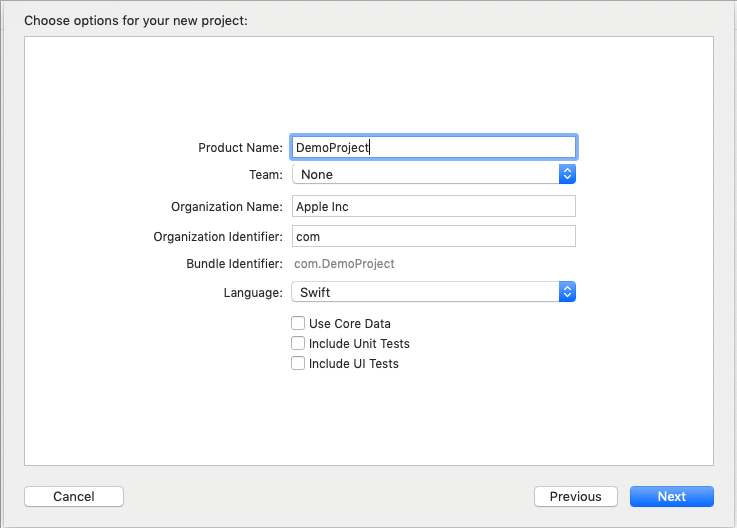
We are asked to check three options at the bottom. We won’t choose one of them at first. On the other hand, when using CoreData in iOS applications, the options become necessary.
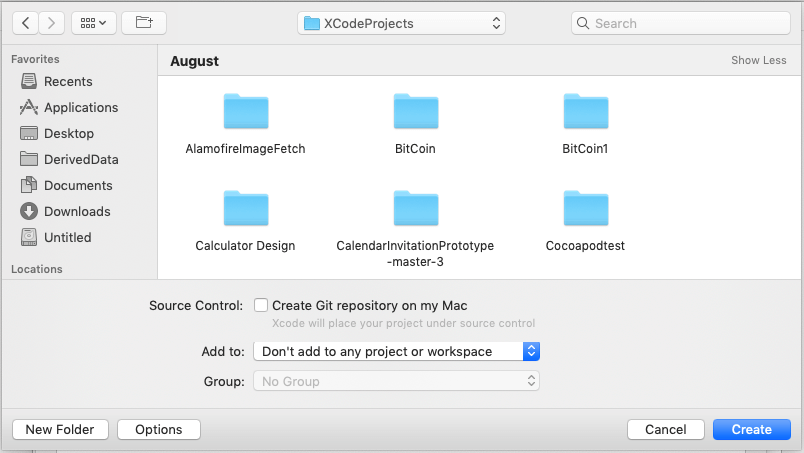
We will now be prompted to choose where in the system we want to save the project. Click Create after deciding where you wish to save the project. But it will also ask us to choose the version control program and whether we want to keep up with the Git repository on our computer. We’ll click on Create and stay unchecked.
Our first iOS application will be successfully created as a result. Let’s now program the display of a message to the user on the screen of our first iOS application. We’ll begin by using the iOS app Hello World.
First iOS application
Hello World, a well-known and adorned greeting, will be displayed to iPhone users in our debut iOS application.
A storyboard will be used in the creation of this application. You will have a better understanding of how to use storyboard effectively while designing iOS applications after creating this one. We won’t apply the restrictions to the Views in this project for better comprehension because we’ll cover them in the later section of the tutorial—Auto Layout in Swift.
The main storyboard will appear like this window when we open it from the project navigator. We may now drag and drop the media library widgets.
The fundamental components of any iOS application are ViewControllers, as we have already covered in this course. Every iOS project starts with a View Controller in the storyboard and a class called ViewController.swift that is assigned to the View Controller. By generating the outlets, we can program the views in the corresponding class file and add the UIViews to this ViewController.

According to the requirements for this application, we must display a stylized version of the Hello World greeting to iOS users.
The following procedures shall be followed for this objective.
Step 1: In the storyboard, attach an UiView to the ViewController.
Use the short key combination of Command+Shift+L to open the media library before adding a UIView to the ViewController. Look for UIView and drag the result to the ViewController’s storyboard.
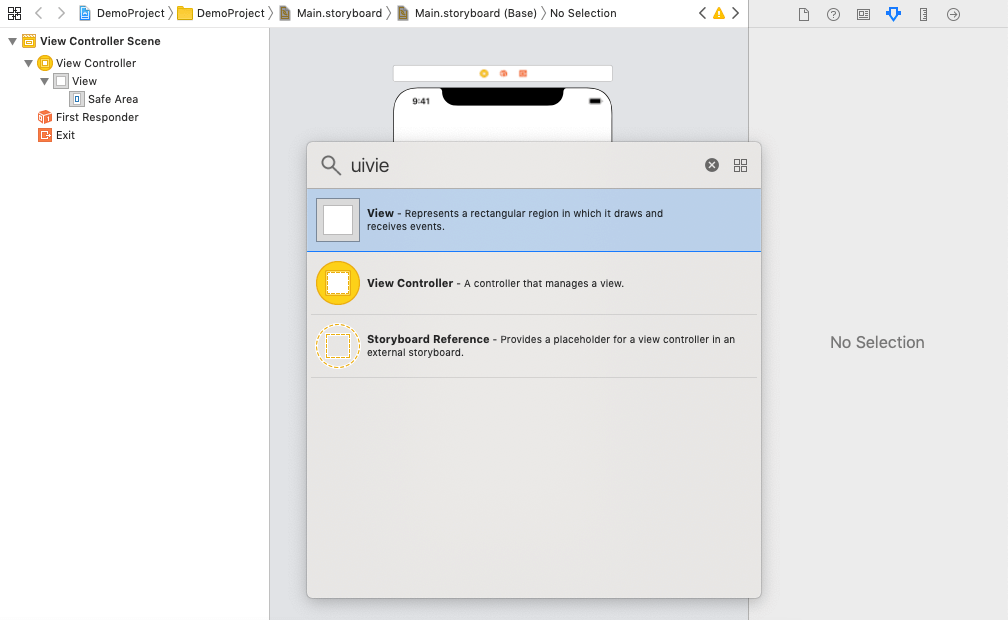
In the storyboard, this will add a UIView to the ViewController.

Next, give the UIView some decoration by giving it a backdrop color and size. The attribute inspector in XCode will be used for this, as seen in the right pane of the window that follows.

Step 2: In the storyboard, attach a UILabel to the ViewController.
Now, from the media library, add a UILabel to the ViewController in the storyboard. Drag the result of your media library search for UILabel onto the Storyboard.

This will update the Storyboard with a label.
Step:3 is to embellish the UILabel.
We will now add some properties to the UILabel using the Attribute inspector in order to beautify it. We’re going to utilize the same backdrop color in this project as the View. The label will have a unique typeface applied to it, and it will be centered. Additionally, we’ll alter the UILabel’s text to Hello World, as shown in the window that follows.
The Attribute inspector displays the attributes that were assigned to the UILabel. The hierarchy of views used in the storyboard is displayed in the window’s left pane, which is the View Controller scene.

To launch the project, press the shortcut key Command + R. This will launch the project’s simulator. In macOS, the simulator replicates the iPhone. To run an iOS application on a macOS computer, XCode offers a variety of simulators. The iOS application is launched on the iPhone XR by default when it is selected in XCode. Let’s use the iPhone XR to run the aforementioned app.

Thus, utilizing Simulator, we have successfully generated and run our first iOS application.

